Creating a Print@Home coupon is easy with CoupJoy. Follow the instructions below to get your campaign up and running.
1. Gather your assets - Use the Coupon Checklist and our Graphic Specs to help get your assets ready to build your coupon.
2. Click "Create" on the far right of the coupon page or at the top center of each page to begin creating your coupon. 
3. Fill in your basic campaign information:
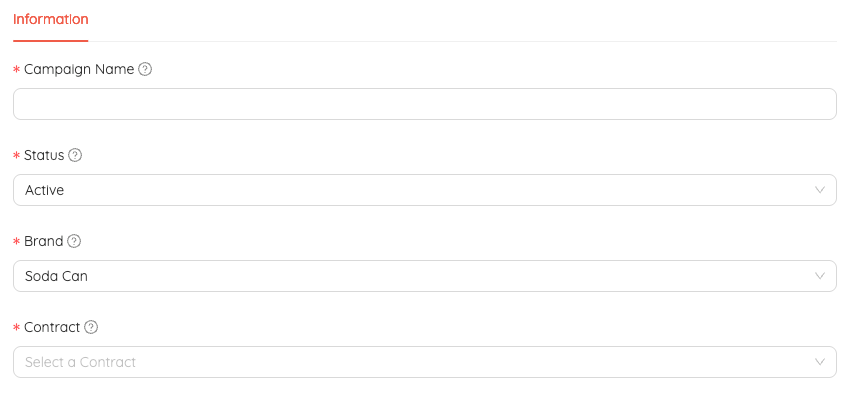
- Campaign Name - This is a private name only used help you identify your coupon campaign.
- Select Status - A campaign can be set to Active or Inactive. Note:A campaign must be active to allow clipping.
- Brand - Select the brand this coupon is for.
- Contract - Select the contract this coupon is from.
4. Fill in the details for the coupon
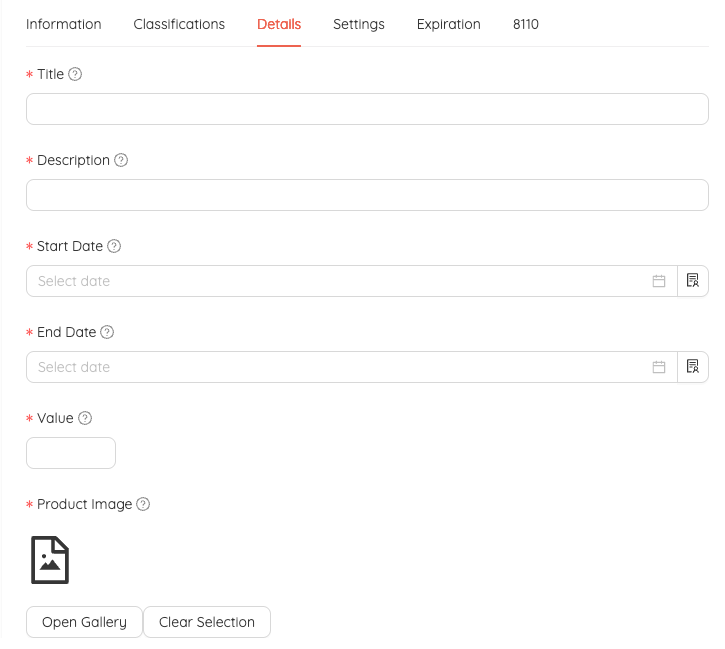
- Title - This is the offer amount. Ex... $1.00 OFF, Save $1.00, or Buy One Get One Free
- Description - Brief description of the coupon offer shown to consumers on the website, the 8110 printed coupon and the 8112 wallet passes, if applicable. e.g. off any ONE product
- Start Date - This the first date the coupon is available to be printed.
- End Date - This is the final date the coupon to be printed
- Value - Monetary value of the coupon (e.g., $5 off, $10 rebate)
- Product Image - Click Open gallery to load or choose your product image.
5. Fill in your settings -
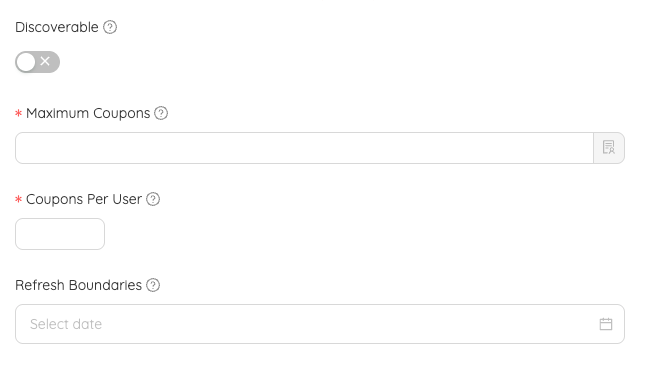
- Discoverable - Toggle this on if you want your coupon to show up inside the CoupJoy network. This will add your coupon to our gallery of coupons and consumers can discover on CoupJoy.com
- Maximum Coupons - Maximum total number of coupons that can be clipped from this campaign (leave empty for unlimited)
- Coupons Per User - Maximum number of times a single user can clip this coupon (leave empty for unlimited)
- Refresh Boundaries - Dates when the coupons-per-user counter resets, allowing users to clip again
6. Expiration Date - You can set the expiration date to a fixed date or a rolling date.
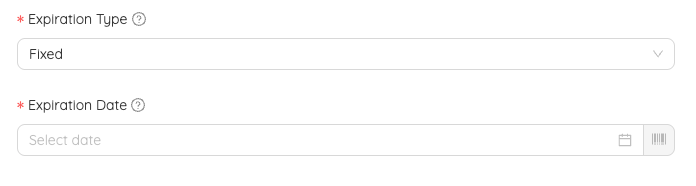
- Expiration Type -
- Fixed - If Fixed, every coupon will have the same date for expiration
- Rolling - If Rolling, is selected you will need to set the # of days each coupon has to be redeemed.
- Expiration Date - Select the final date for redemption
7. 8110 Settings - Settings for barcode and legal text
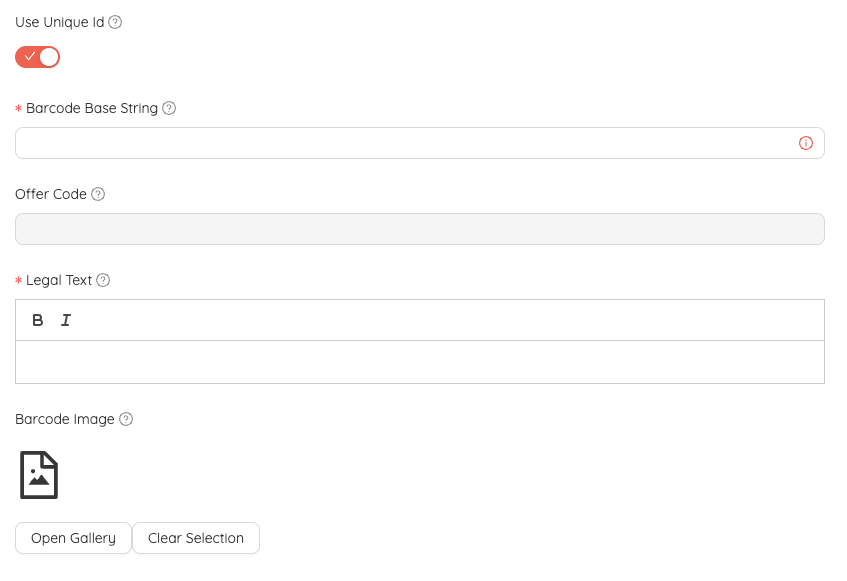
- Use Unique ID - Generate a unique identifier in the barcode for each clipped coupon
- Barcode Base String - GS1 DataBar Expanded barcode base string (max 74 characters). Click the information icon to validate and decode the barcode.
- Offer Code - Auto-generated offer code extracted from the base data string
- Legal Text - Terms and conditions text displayed on the printed coupon and website
- Barcode image - Custom barcode image if not using the generated GS1 barcode
8. Save to complete your coupon
Was this article helpful?
That’s Great!
Thank you for your feedback
Sorry! We couldn't be helpful
Thank you for your feedback
Feedback sent
We appreciate your effort and will try to fix the article