Displaying a coupon gallery on a website or app—whether for a CPG brand or a grocery retailer—offers a range of strategic, marketing, and consumer experience benefits. Creating a Gallery is simple and only takes a few minutes.
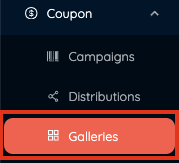
1. Click on Galleries in the Coupons menu item.
2. Click "Create" on the far right to create a gallery.

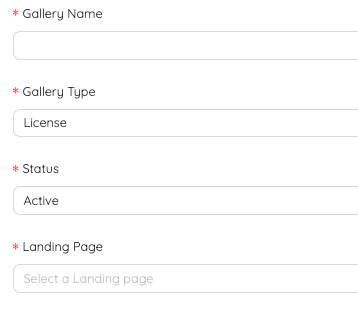
3. Fill in your Gallery Information
- Gallery Name - This is internal and will be used in your reporting to show where your coupon was clipped from.
- Gallery Type - If your account is authorized you select from a license or network gallery.
- License Gallery - this is a private gallery that can only accept the coupons you create in your account.
- Network Gallery - This gallery will give you a list of the available public coupons that can be displayed on your gallery.
- Status - You can activate or deactivate your gallery
- Landing Page - Select the landing page you want to use with your gallery. To learn more about landing pages click here.
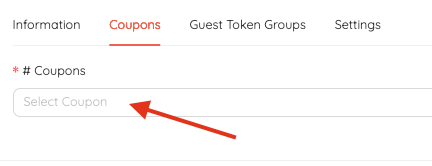
4. Select your coupons - Click where it says select coupons and you will see a list of the available coupons you can add to your gallery.
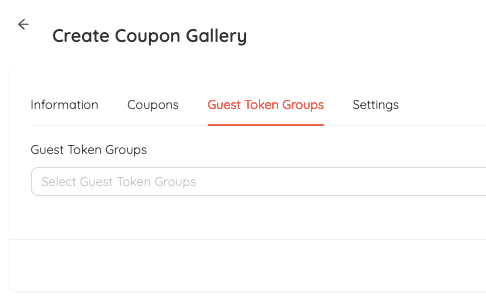
5. Guest Token Group - Select which Guest Token group you want to assign to the gallery. To learn more about Guest Tokens click here.
6. Fill in the settings and save
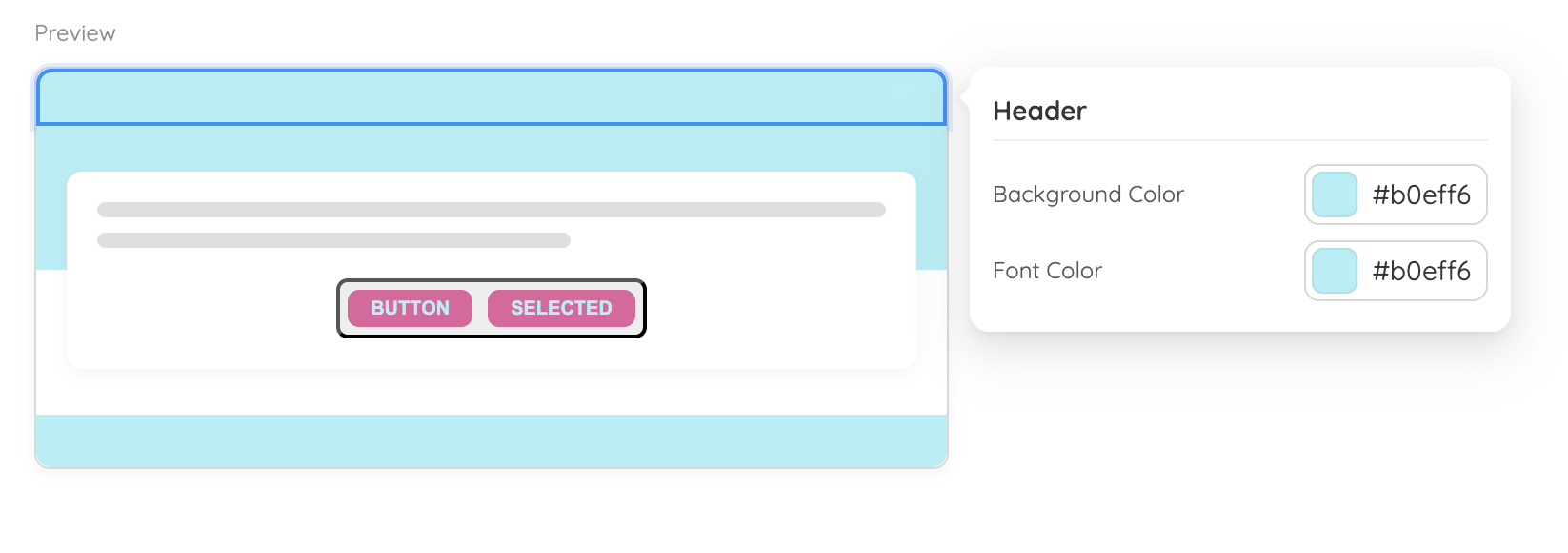
- Styles - Choose colors that best match your branding
- Tracking Code - If you have 3rd party tracking you want to include you can add it here.
- NOTE - This will only track information on the gallery. If you want to include tracking after coupons have been selected you will need to include that in the landing page associated with this gallery. For more information on landing pages click here.
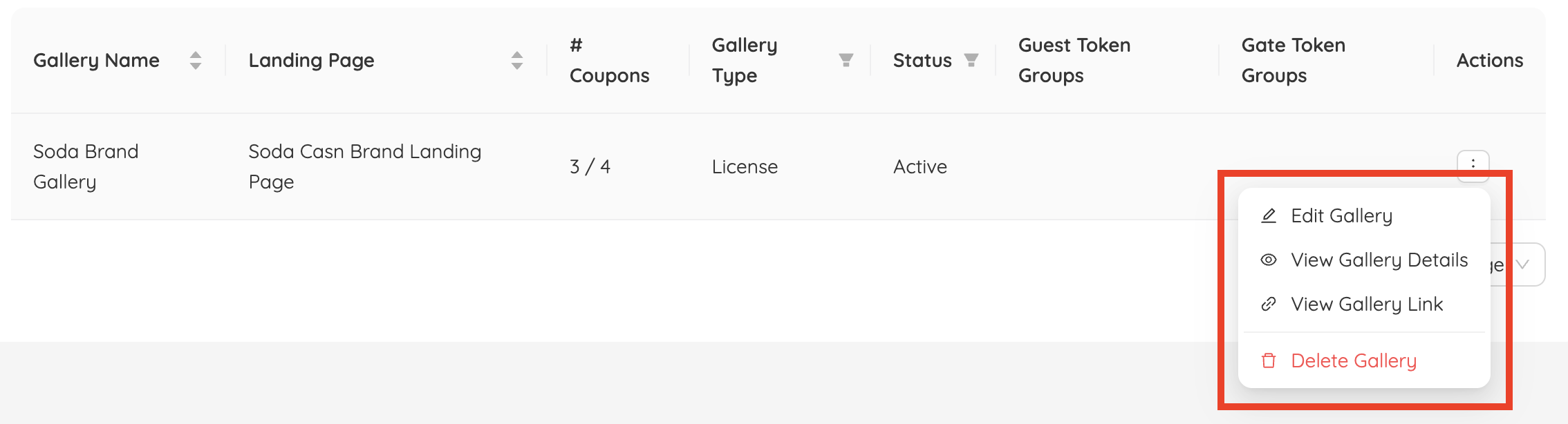
7. Viewing and Editing your gallery - Once your gallery is created you can use the actions on the far right to view, edit, and delete the gallery.
- Edit -Click this button to edit ay settings or add additional coupons to the gallery.
- View Settings - View the current settings for you gallery
- Link - Click this to see open a link to your gallery.
- Delete - click this to delete your gallery
Was this article helpful?
That’s Great!
Thank you for your feedback
Sorry! We couldn't be helpful
Thank you for your feedback
Feedback sent
We appreciate your effort and will try to fix the article