Adding a survey to your coupon experience allows your brand to collect valuable first-party data, grow your email list, and gain insights to personalize future offers and strengthen consumer relationships. Surveys are located under the Content menu item.
1. Click on Pages
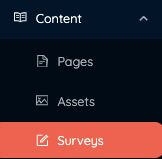
2. Click "Create" on the far right to create a Survey.

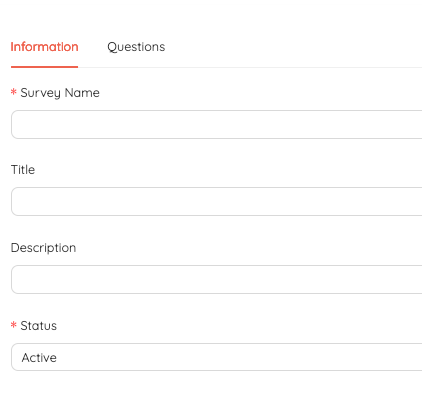
3. Fill the information for your Survey
- Survey Name - This is the internal for your survey
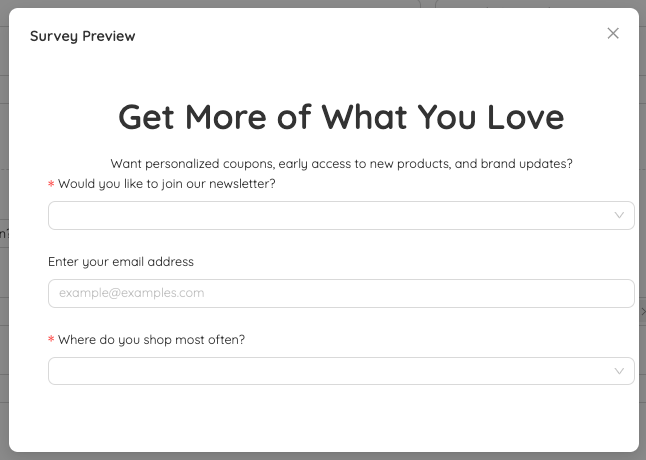
- Title - (Optional) This is the large text at the top that consumers see. View the diagram in the preview below to see a visual.
- Description - (Optional) This is a short sentence or two that explains why the survey is being shown. View the diagram in the preview below to see a visual.
- Status- You can activate or deactivate your Survey
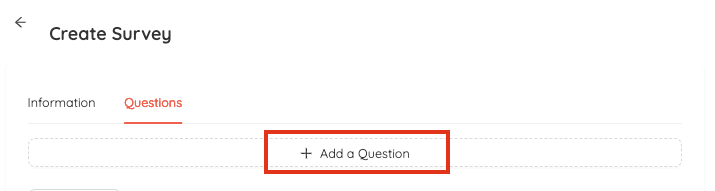
4. Questions - Click "Add a Question" to add questions to your Survey.
Question Types
- Text - A single-line input for short responses like names, email addresses, or short answers.
- Text Area - A multi-line input field used for longer responses such as comments, feedback, or descriptions.
- Select - A dropdown menu that lets users choose one option from a predefined list.
- Radio - A set of options where the user can select only one choice. All options are visible.
- Checkbox - Allows users to select one or more options from a list.
- Number - A field that accepts only numeric input, useful for quantities, ages, or prices.
- Date - A calendar-based input where users can select a specific date.
When creating your questions you can select multiple options to enhance the user experience.
- Question - This is the question that shows to the consumer for this field
- Required - Toggle this button to determine if a field is required.
- Type - This is where you can select the type of question
- Placeholder Text - This is the sample text displayed inside a form field before the user enters their response. It serves as a prompt or example to help guide the user on what type of answer is expected.
- Help Text - Displays as a tooltip or message near the field to provide helpful instructions or additional context for the user.
- Options - For Select, Radio, and Checkbox field types, this is where you define the list of possible answers a user can choose from. These options replace the placeholder text and appear as selectable choices in the form.
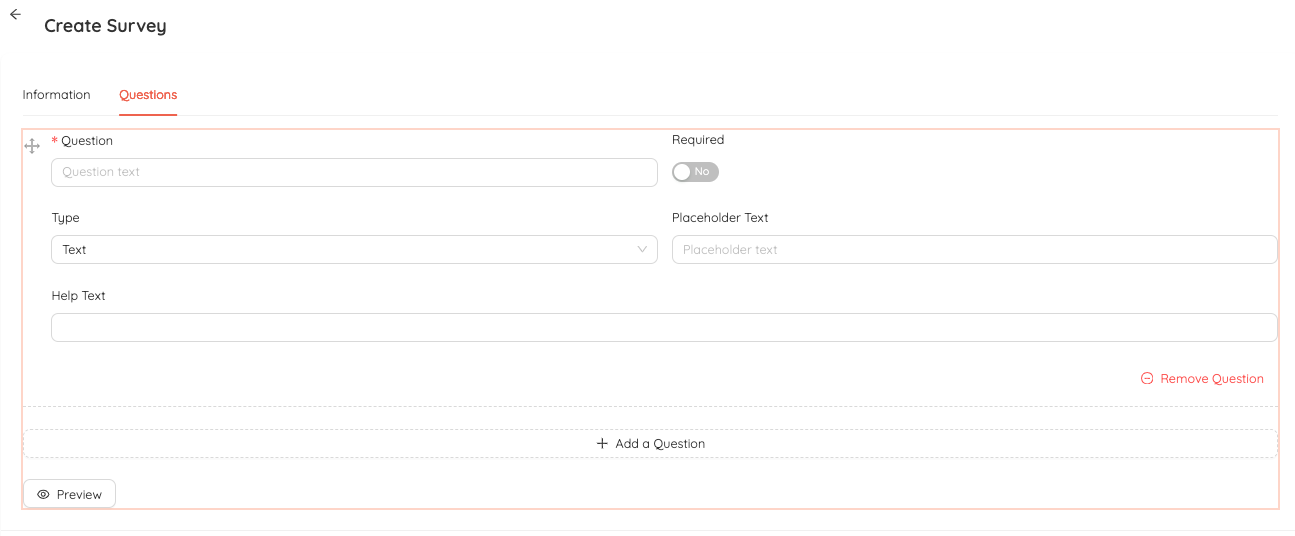
5. Preview - Click the preview at the bottom left to see an example of the Survey.
NOTE: Once your survey is created you can add it any landing page you have in the landing page settings. For more information about landing pages click here.
Was this article helpful?
That’s Great!
Thank you for your feedback
Sorry! We couldn't be helpful
Thank you for your feedback
Feedback sent
We appreciate your effort and will try to fix the article