Landing pages are connected to either a distribution link or a gallery and serve as the consumer interface for authenticating and clipping or printing coupons. Landing pages are located under the "Content" menu item.
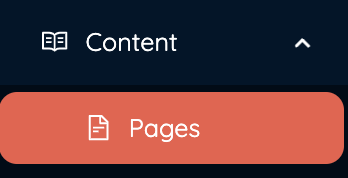
1. Click on Pages
2. Click "Create" on the far right to create a landing page. 
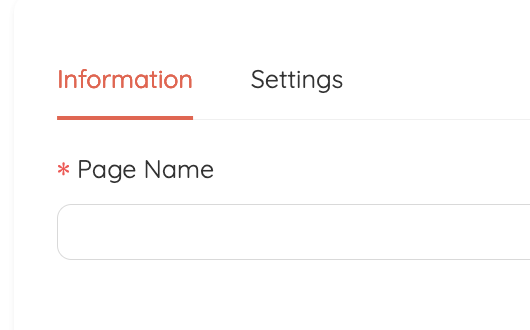
3. Create a name for your Landing Page
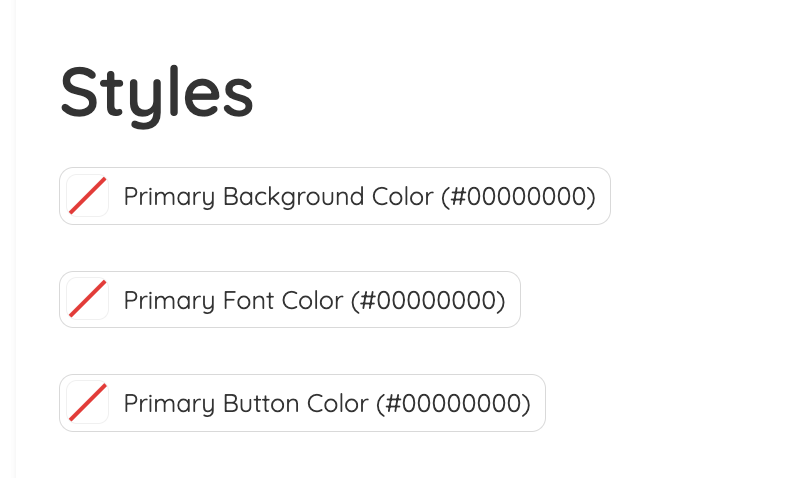
4. Styles - Choose colors that best match your branding
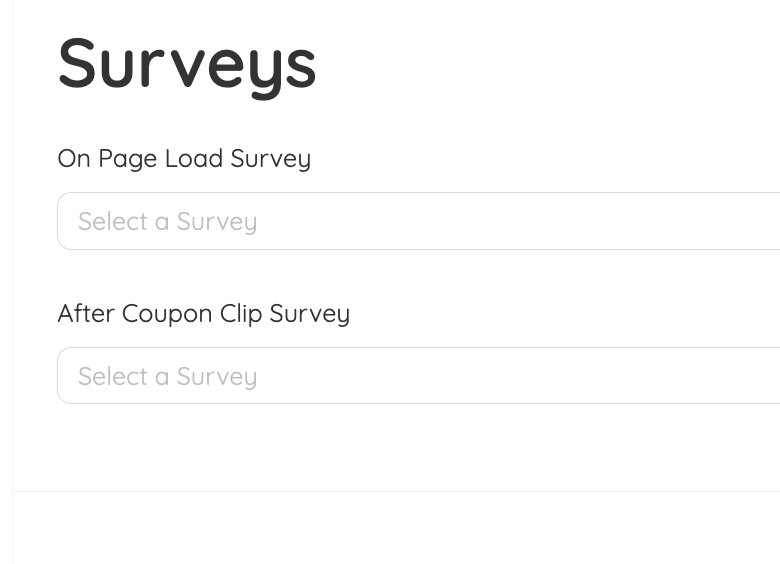
5. Add a survey - If you have a survey created you can assign it here. Survey's can be placed before or after a coupon is clipped/printed. For more information on surveys click here.
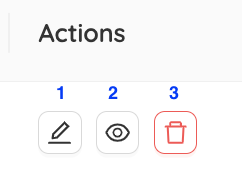
7. Viewing and Editing your Landing Page - Once your landing page is created you can use the actions on the far right to view, edit, and delete the gallery.
- Edit -Click this button to edit ay settings or add additional coupons to the landing page.
- View Settings - View the current settings for you landing page.
- Delete - click this to delete your landing page.
Was this article helpful?
That’s Great!
Thank you for your feedback
Sorry! We couldn't be helpful
Thank you for your feedback
Feedback sent
We appreciate your effort and will try to fix the article